Most store owners build their catalogs in Excel. Prices, SKUs, stock counts, and supplier details all live in one workbook that gets sorted, updated, and versioned over months of sourcing. The problem starts when it's time to move that workbook into WooCommerce.
WooCommerce's native importer only reads CSV files, and converting an Excel workbook to CSV corrupts more data than it preserves.
In this article, we'll show you how to import WooCommerce products from Excel without converting anything, and how to keep your catalog updated from the same workbook over time.
📑 Table of Contents
- Why the Default WooCommerce Importer Rejects Excel Files
- Mapping Excel Columns to WooCommerce Product Fields
- How to Import WooCommerce Products From Excel
- Keep Your Catalog Updated From the Same Excel Workbook
- What Is the Best Way to Import WooCommerce Products From Excel?
- Frequently Asked Questions
Why the Default WooCommerce Importer Rejects Excel Files
WooCommerce includes a free importer under Products › All Products › Import, but it accepts only two file types: CSV and plain TXT. It cannot open .xlsx or .xls files at all. Most guides recommend a simple fix: open the Excel file, save it as CSV, and import the converted file.
That conversion step is where Excel product data gets damaged:
- SKU corruption: Excel strips leading zeros from text stored as numbers. A SKU like
004512becomes4512the moment the file is saved as CSV, and every product referencing that SKU breaks. - Encoding damage: Standard CSV exports use Windows-1252 encoding by default. Accented characters, currency symbols like € and £, and smart quotes arrive in WooCommerce as garbled text unless the export is manually set to UTF-8.
- Date and number reformatting: Excel converts dates to locale-specific formats (03/15/26 vs. 15/03/26) and reformats prices based on regional settings. Sale price scheduling dates and numeric fields rarely survive the conversion intact.
- Multi-sheet loss: A workbook with supplier lists on multiple tabs exports only the active sheet. Anything on the other tabs vanishes from the CSV without warning.
- Formula artifacts: Columns built on formulas export their calculated values, but comma-containing results (like full descriptions) can break CSV column parsing when quoting rules are not handled correctly.
WP All Import eliminates the Excel to CSV conversion step entirely. It parses .xlsx and .xls workbooks natively, reads the data exactly as Excel stores it, and maps incoming columns to WooCommerce fields without requiring any fixed column names.
Mapping Excel Columns to WooCommerce Product Fields
WP All Import does not require your Excel file to follow any column naming convention. Headers like Product Name, Item Title, or even custom supplier labels all work, because Automatic Setup reads the actual data in each column and pairs it with the correct WooCommerce field. You don't need to download a template or conform to a schema.
The table below is a reference, not a requirement. It shows where WooCommerce stores each type of product data once it has been imported, which is useful to know if you ever want to check what the plugin did with a particular column:
| Excel Column | WooCommerce Product Field |
|---|---|
| SKU | _sku |
| Product Name | post_title |
| Description | post_content |
| Short Description | post_excerpt |
| Regular Price | _regular_price |
| Sale Price | _sale_price |
| Stock Quantity | _stock / Manage Stock |
| Category | product_cat |
| Image URL | _thumbnail_id and _product_image_gallery |
| Size, Color | _product_attributes or pa_* |
| Parent SKU | post_parent |
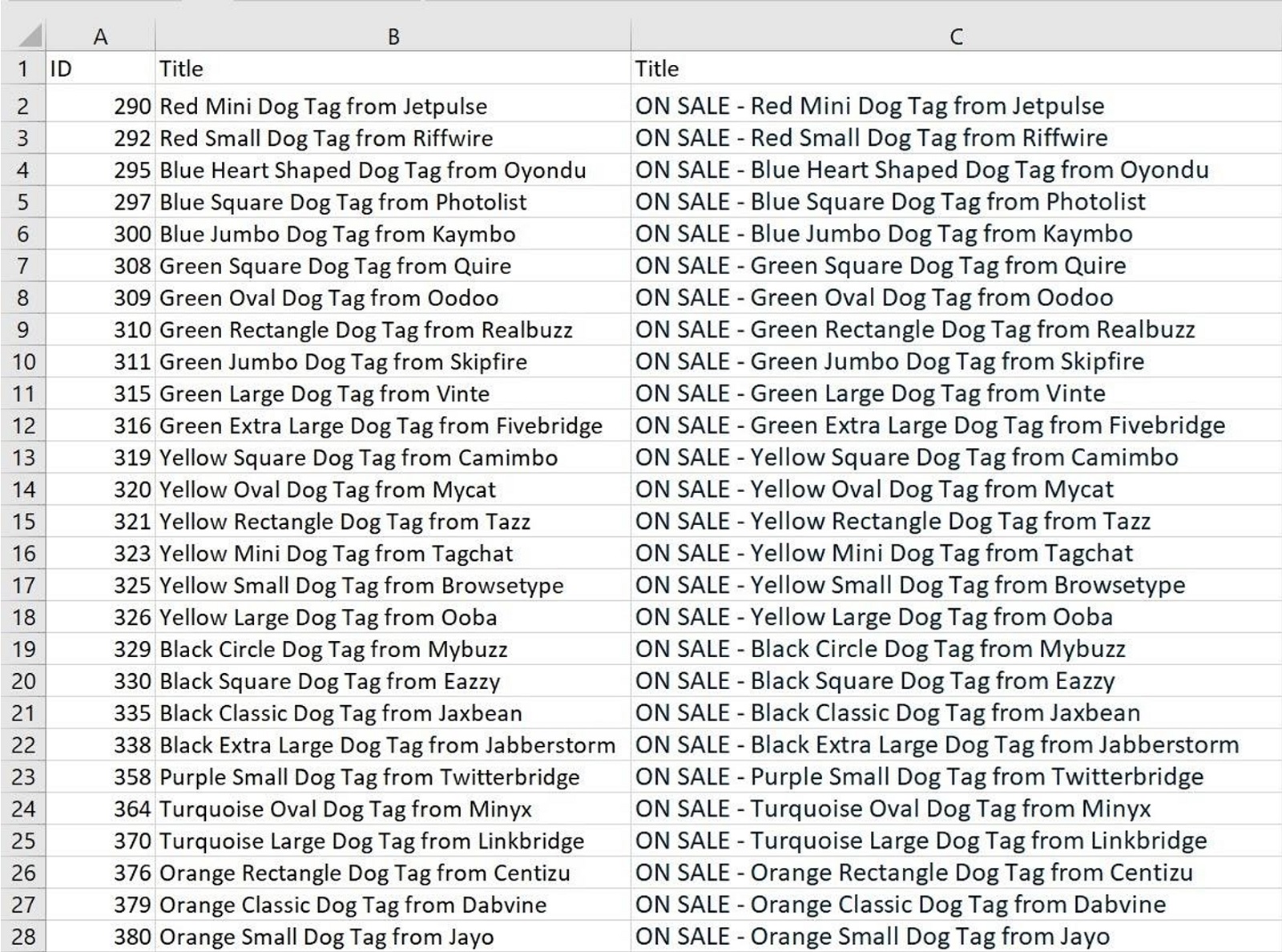
Two columns deserve extra attention for variable products. The attribute columns (such as Size and Color) must have the Used for variations setting enabled during import, and every variation row needs a Parent SKU value matching its parent product's SKU. Automatic Setup detects and configures both automatically when those columns are present, whatever you named them in your workbook.
How to Import WooCommerce Products From Excel
With the workbook ready, the import itself takes a few minutes through Automatic Setup.
Step 1: Upload Your WooCommerce Products Excel File
Navigate to All Import › New Import in your WordPress dashboard and click the Set up automatically banner at the top of the screen.
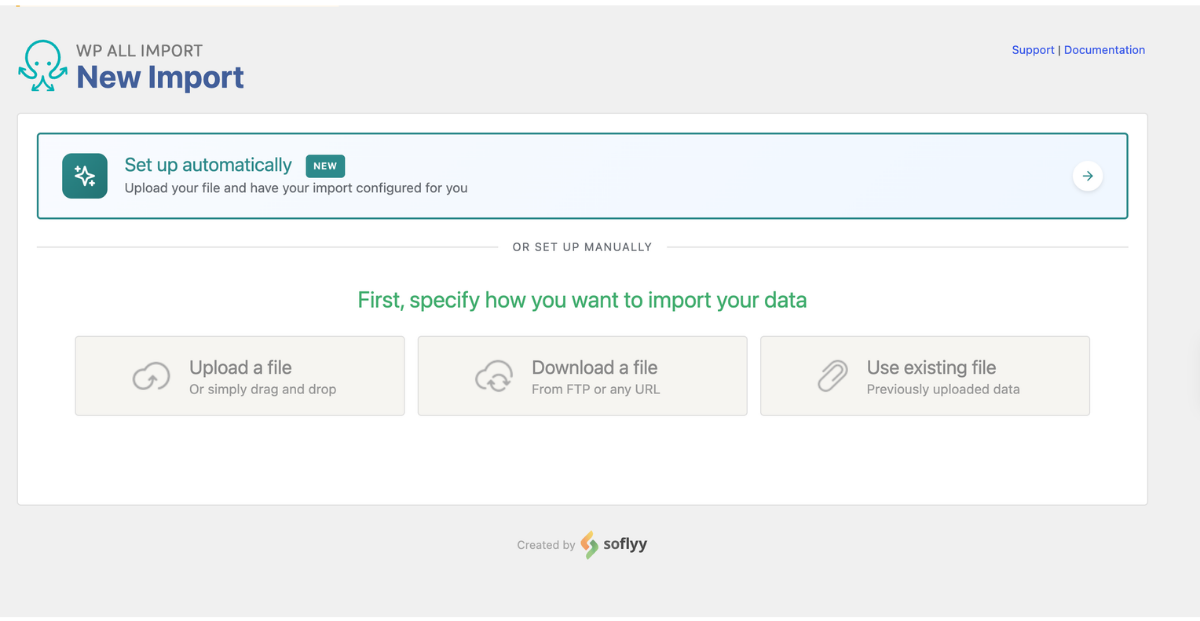
Choose your file source:
- Upload a file: Select the .xlsx or .xls workbook directly from your computer.
- Download from URL: Enter a link to an Excel file hosted on a supplier server or shared drive.
- Existing file: Reuse a workbook already uploaded to
/wp-content/uploads/wpallimport/files/. - FTP/SFTP: Pull the Excel file directly from a remote supplier storage server.

Under Choose What to Import, select WooCommerce, then Products (Simple, Variable, Grouped).
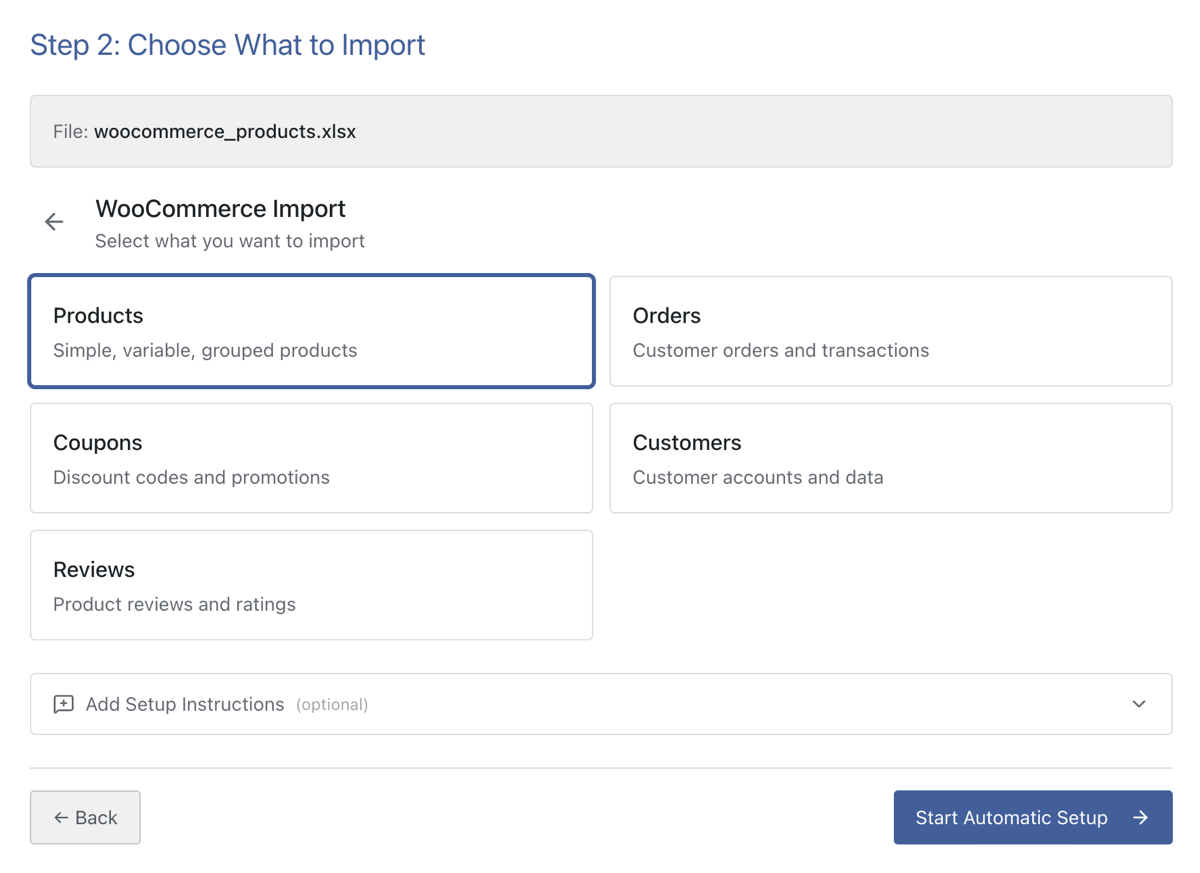
If your workbook has anything unusual, expand Add Setup Instructions and describe it in plain English, such as "Column F contains multiple image URLs separated by commas" or "Use the ListPrice column for regular price." Then click Start Automatic Setup. The plugin parses the workbook, reads each sheet's columns, and builds the field mappings automatically.
Step 2: Inspect the Automapped Product Fields from Excel
When the analysis completes, the Your Import Is Ready card shows how many product records were detected and how many fields were mapped from your Excel file.
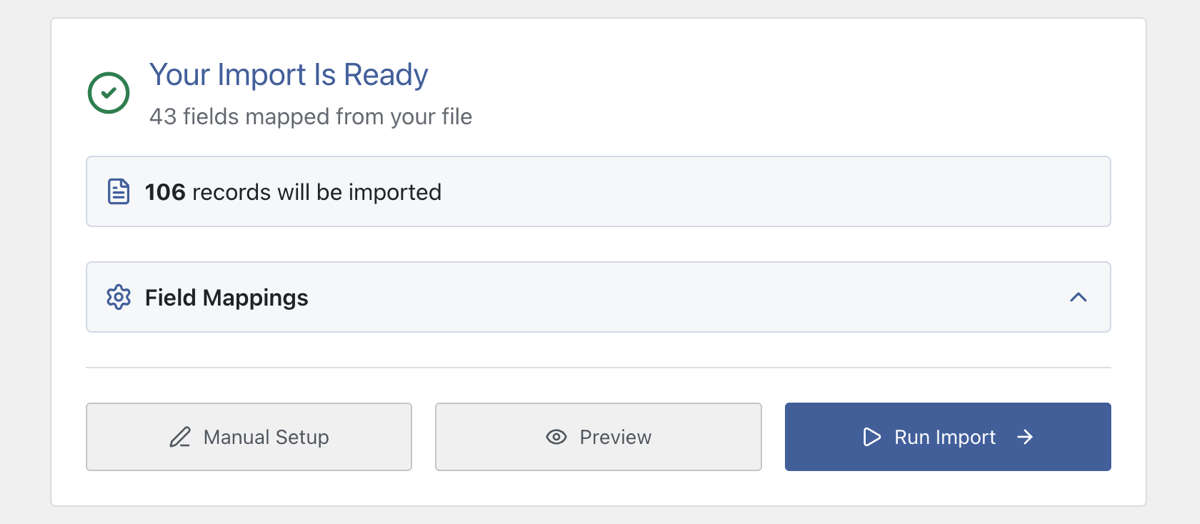
Click Field Mappings to expand the checklist. Verify that titles, SKUs, Regular Price, Sale Price, and image columns were paired correctly. For variable products, check that attribute names appear alongside their value columns and that the Parent SKU column was detected for linking.
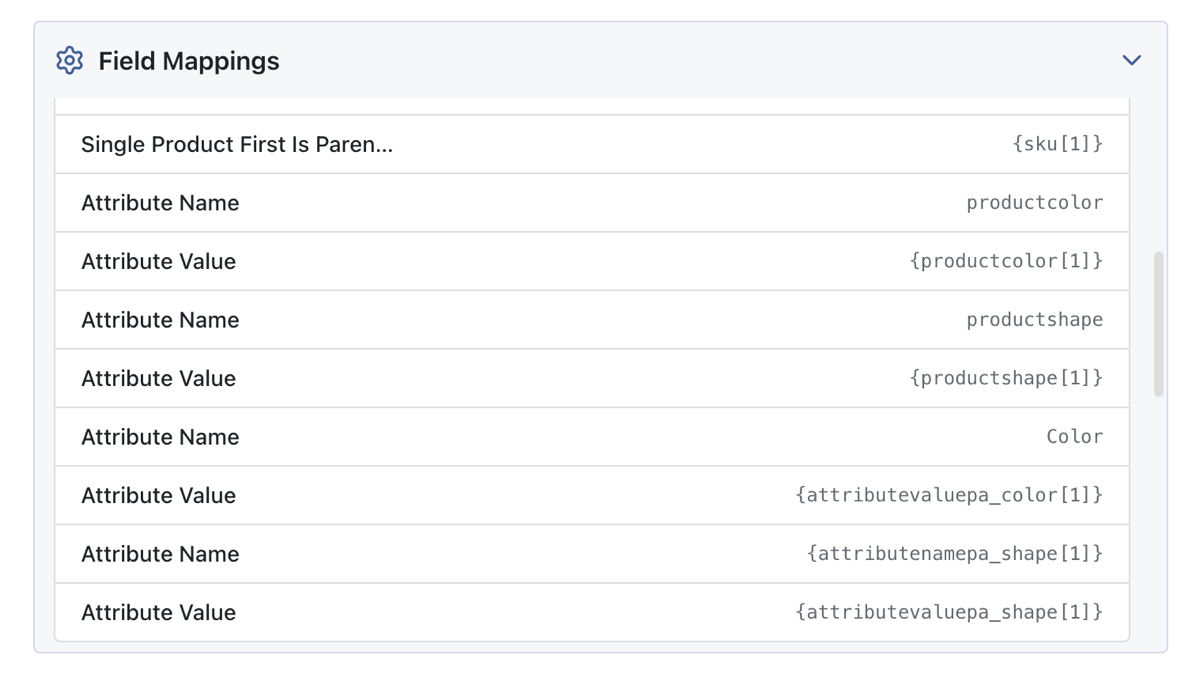
If everything matches your catalog structure, click Run Import. If a column was misread or you want to adjust attribute settings, click Manual Setup to open the pre-filled template editor.
Step 3: Preview the WooCommerce Products Live
On the same page, you can also click the Preview button to open a panel beside your field mappings:
- Frontend View renders real product pages from your theme, so you can confirm titles, prices, and image galleries display the way shoppers will see them.
- WP Admin View shows the WooCommerce backend edit screen, confirming the Excel data landed in the correct Product Data fields, including the General, Inventory, and Attributes tabs.

Navigate through several records using the arrows, including at least one variable product, before committing anything to the database.
Step 4: Run the Excel Product Import
Click the blue Run Import button on the summary card. WP All Import skips the intermediate screens, takes you to the confirmation page, and processes the file in background batches to avoid server timeouts on large workbooks.
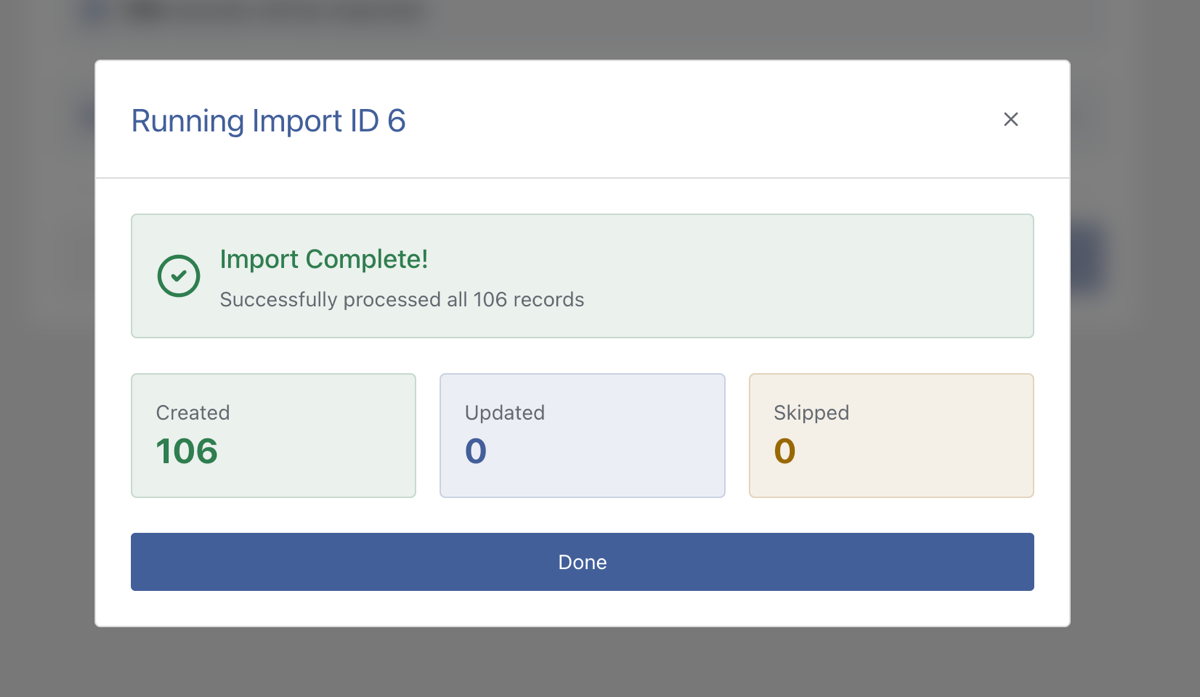
When it finishes, open Products › All Products and spot-check a few items against the original spreadsheet.
Keep Your WooCommerce Catalog Updated From the Same Excel Workbook
The initial import is only half the value. Because the Excel workbook stays the source of truth for pricing and inventory, the same file can refresh the catalog indefinitely.
On the Import Settings screen, click Auto-detect to generate a Unique Identifier. WP All Import typically pairs the SKU column with the product title, which allows every future import to match incoming rows against existing products and update them in place instead of creating duplicates.
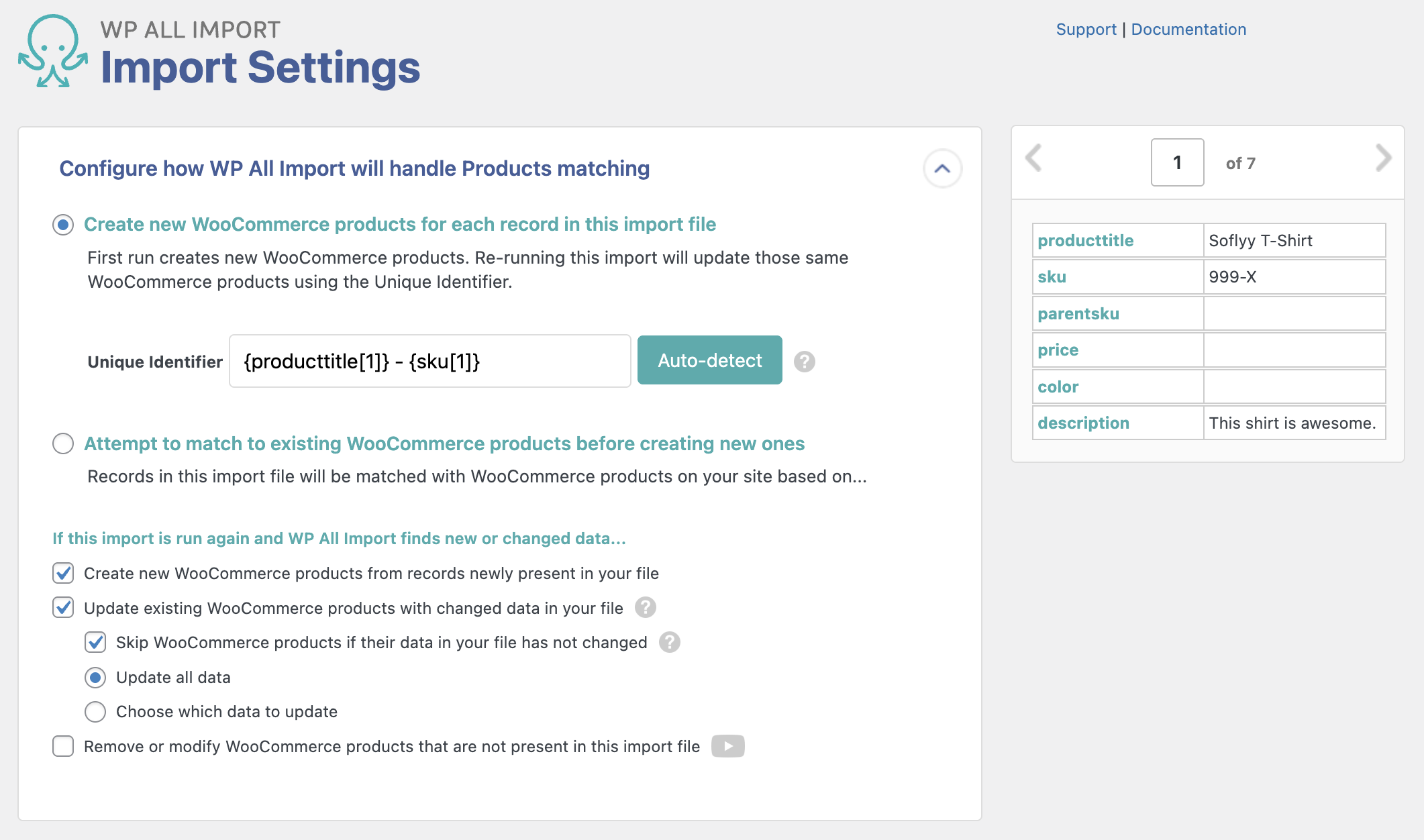
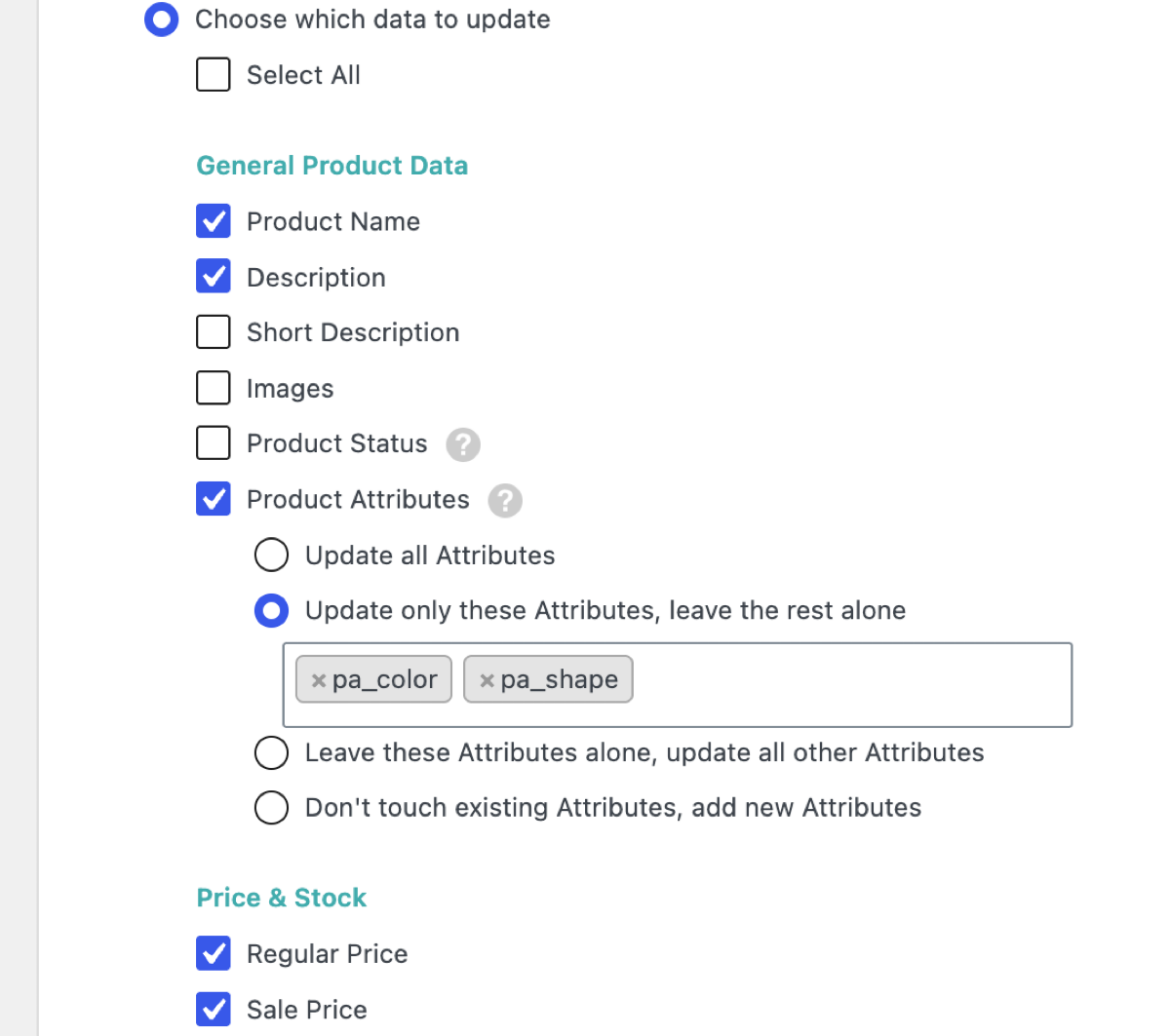
With matching in place, rerunning the import after editing prices in Excel updates the catalog in minutes. You can narrow each update to specific fields: refresh Regular Price, Sale Price, and Stock Quantity while leaving descriptions, images, and categories untouched.
If the workbook lives on a shared drive or supplier server, you can also configure Scheduling Options to import it automatically on a daily or weekly schedule using free server cron or the paid Automatic Scheduling service ($19/month).

What Is the Best Way to Import WooCommerce Products From Excel?
The built-in WooCommerce importer cannot open Excel files, and the standard workaround (saving the workbook as CSV) corrupts SKUs, mangles currency symbols, and silently drops worksheet tabs. For a one-time import of a simple catalog, the conversion might get through. For an active store, it creates data problems that take longer to fix than the import itself.
WP All Import lets you import WooCommerce products from Excel because it reads .xlsx and .xls workbooks directly, maps columns to WooCommerce product fields automatically on upload, and pairs every import with a Unique Identifier so the same workbook can update the catalog repeatedly without duplicates. Set up once, and the spreadsheet that already runs your sourcing becomes the engine that runs your store.
Frequently Asked Questions - Import WooCommerce Products From Excel
Can WooCommerce import products from Excel directly?
No. The built-in WooCommerce importer only accepts CSV and TXT files. To import .xlsx or .xls files without converting them, use a plugin like WP All Import, which parses Excel workbooks natively and maps the columns to WooCommerce product fields automatically.
Do I need to convert Excel to CSV before importing products?
No. Converting an Excel workbook to CSV strips leading zeros from SKUs, scrambles currency symbols, and drops all worksheet tabs except the active one. WP All Import reads .xlsx and .xls files directly, eliminating the conversion step and the data damage that comes with it.
What columns should my Excel file have for importing products?
At minimum, include Product Name, SKU, and Regular Price columns. Recommended additions include Description, Short Description, Stock Quantity, Category, and Image URL. For variable products, add attribute columns like Size and Color plus a Parent SKU column linking each variation row to its parent.
How do I update existing WooCommerce products from Excel without creating duplicates?
Set the SKU column as the import's Unique Identifier using the Auto-detect button. When you rerun the import with an updated workbook, WP All Import matches incoming rows to existing products by SKU and updates them in place instead of creating duplicate listings.
Can I import variable products with attributes from Excel?
Yes. Include one parent row per variable product and one row per variation, with attribute columns like Size and Color and a Parent SKU column on each variation row. WP All Import links variations to parents automatically and generates the attribute dropdowns on your storefront.
Related Information